This is an old revision of the document!
SPOT configuration for PrusaSlicer
To maximize your chances of success in creating your most ambitious 3D prints and prototypes, your 3D printing coach has applied all his experience and expertise to create optimized filament profiles specifically for the filament-printer pairing available at SPOT. It is essential that you follow these instructions and use the SPOT filament profile because our filament is very special.
 WARNING: As we upgraded all MK4 printers to MK4S, everyone should include MK4S printers to their slicer configuration.
1. Download PrusaSlicer
- Logically, to use a Prusa 3D printer, it’s recommended to use the software PrusaSlicer .
- Follow the instructions to install the software.
2. Select the good 3D printer models
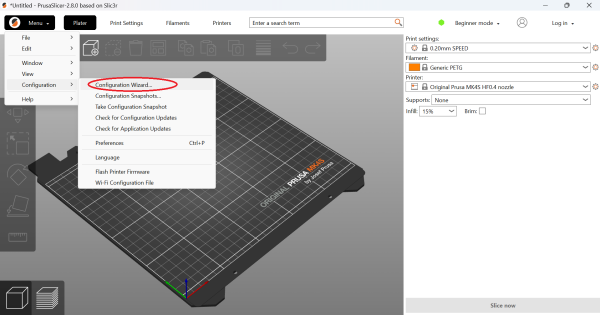
- Once the software is installed: Menu → Configuration → Configuration Wizard…
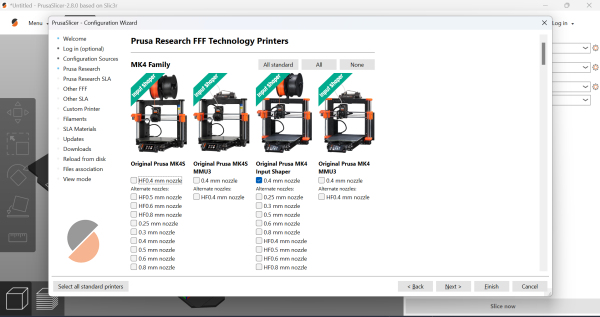
- In the “Prusa Research” menu, select:
“Original Prusa MK4S” “Original Prusa MK4 Input Shaper” “Original Prusa i3 MK3S & MK3S+” All with 0.4 mm nozzle.
Make sure to select MK3S+, not MK3.5 or MK3.9 and make sure to unselect any other printers
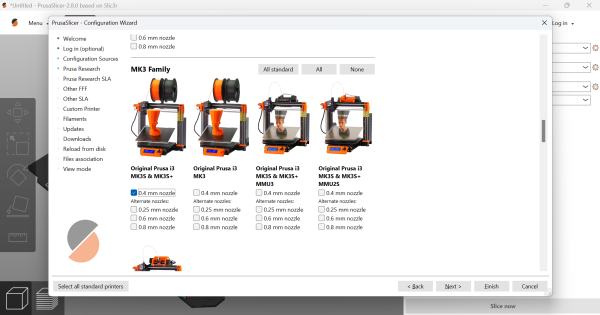
- In the menu “Prusa Research SLA” : unselect all printer

- In the menu “Filaments”: unselect every filament settings by clicking on “None”. Then, select PETG > Generic PETG.
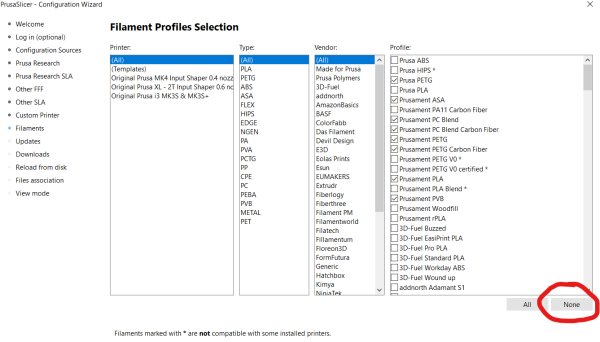
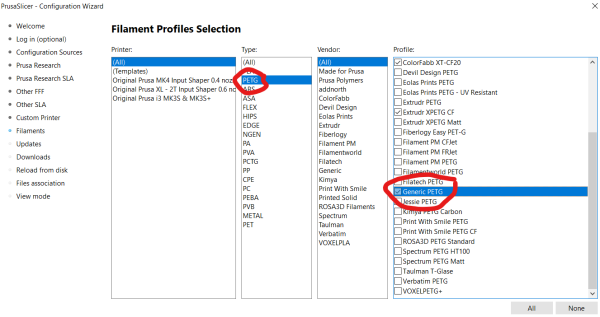
- Select Finish
3. SPOT filament setting
- Download and unzip these two projects : spot_settings_12.03.25.zip
- Go to “menu → file → Open project…” and select one of the project you just downloaded
- Once the project is opened, go to the “Filament” menu (ensure the filament's printing temperatures have automatically adjusted as shown below)

- Save these presets and rename it “SPOT PETG - MK4IS” (if you opened the MK4IS project) or SPOT PETG - MK3S (if you opened the MK3S project)

- Return on “Plater” view and you can now see and select the custom SPOT filament profile to print.
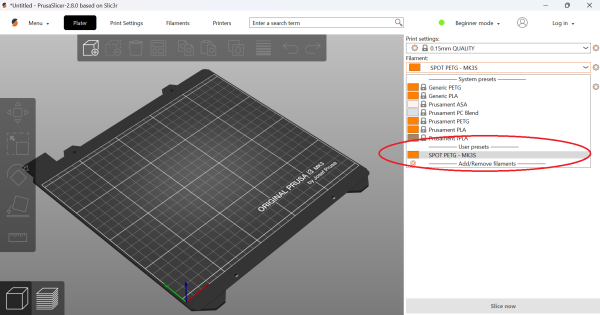
- Repeat the process for the second project you downloaded
At the end of the process, close PrusaSlicer and reopen it before importing your parts.